Upgrades
Update notification in the InDesign plugin
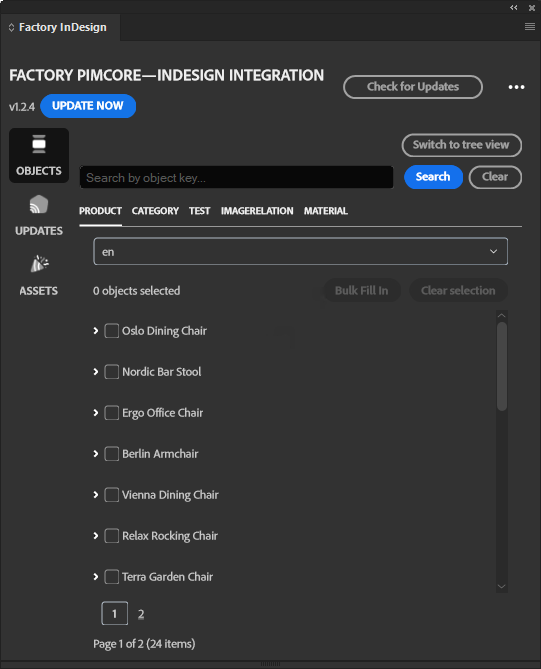
When a new version of the Factory InDesign plugin is available, an Update button appears in the plugin header. Click Update to open a web page with upgrade instructions. On that page, find the Upgrades section for the steps to upgrade both the Pimcore InDesign bundle and the InDesign plugin. The button opens the instructions; it does not install the update automatically. Coordinate with your developer, who updates the Pimcore bundle and sends you the new plugin installation ZIP as described below.
Upgrade the Pimcore InDesign bundle (developer)
A new Factory InDesign plugin version is accompanied by a new Pimcore InDesign bundle version, even if the bundle has no functional changes. For each upgrade, the developer runs the following commands in the Pimcore project environment:
composer update factory/indesign-bundle
bin/console assets:install --symlink
bin/console cache:clear
bin/console pimcore:cache:clear
After running the commands, the developer finds the new InDesign plugin installation ZIP in the package and sends that ZIP to each person who uses the plugin (for example, a designer or product manager).
Upgrade the InDesign plugin
On their InDesign workstation, the person who uses the plugin:
1. Extracts the ZIP received from the developer and locates the .ccx plugin installation file in the extracted files.
2. Double-clicks the .ccx file to install the new Factory InDesign plugin through Adobe Creative Cloud.
There is no need to uninstall the old InDesign plugin first. Check the installed plugin version in Adobe Creative Cloud under Stock & Marketplace > Plugins > Manage plugins.