Browse objects and assets
Objects
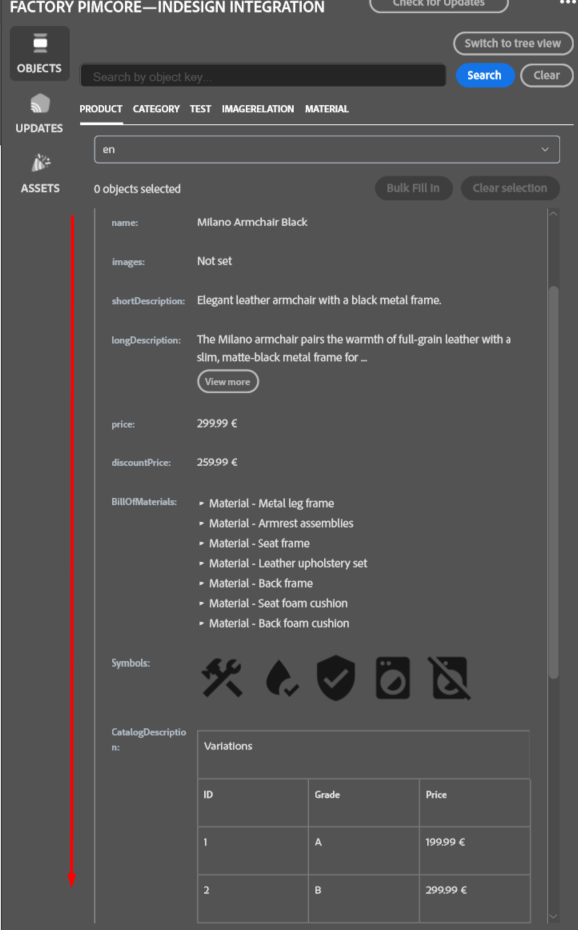
Open OBJECTS. In classes list view, choose a class tab (for example, Product or Brand) and expand an object to see its available attributes and related objects. The class tabs are based on your GraphQL configuration. Use pagination to move through a long list.
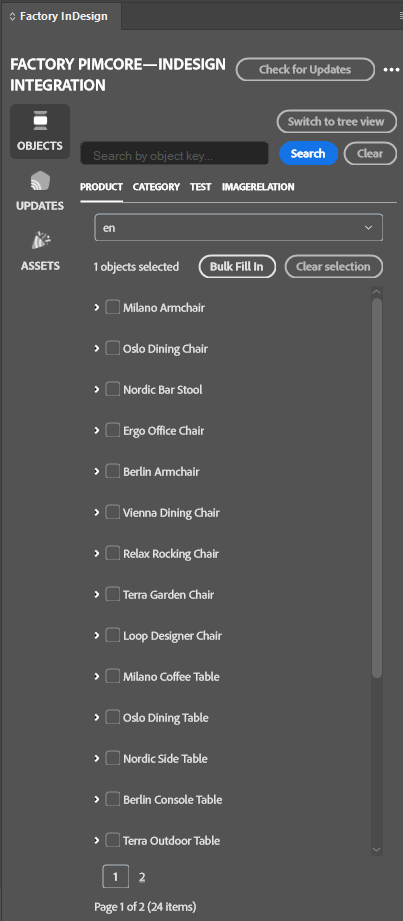
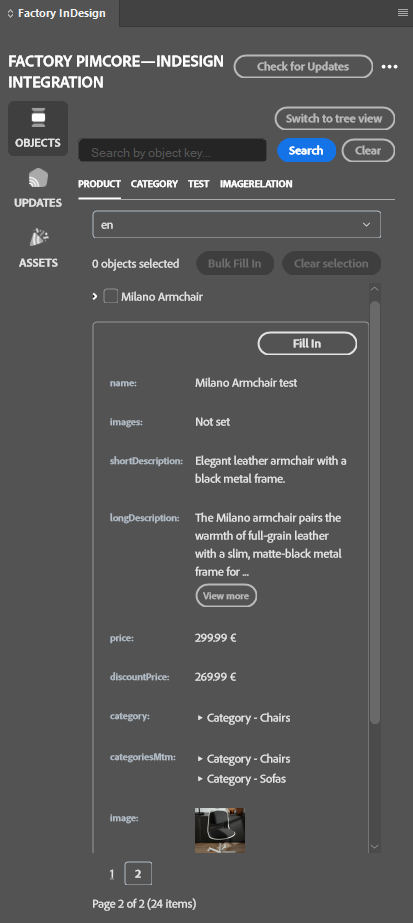
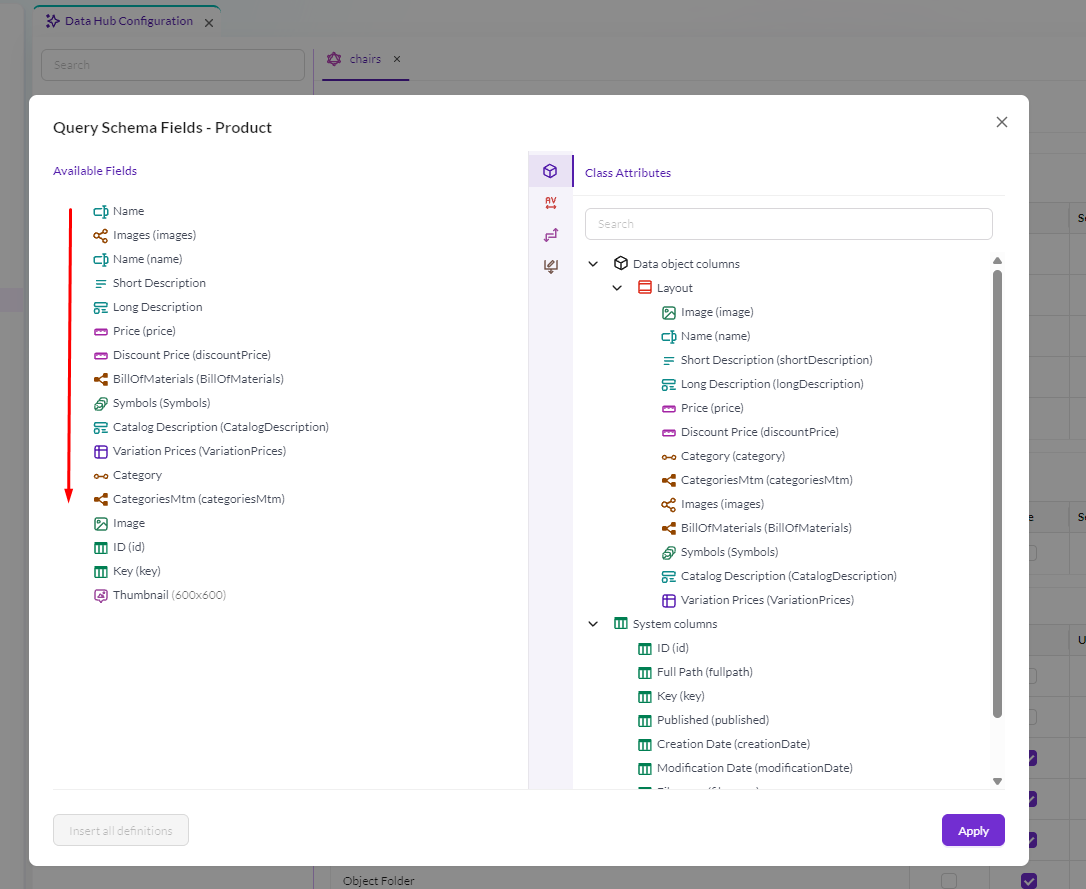
Attributes in OBJECTS appear in the order set by the connected Pimcore DataHub GraphQL configuration. For example, if the configuration lists Name, Brand, then Category, the plugin shows them in that order, including when you scroll through the details. UPDATES uses the same order; update markers do not move attributes. Only exposed attributes appear. If an administrator changes their order, disconnect and reconnect the plugin to see the new order.
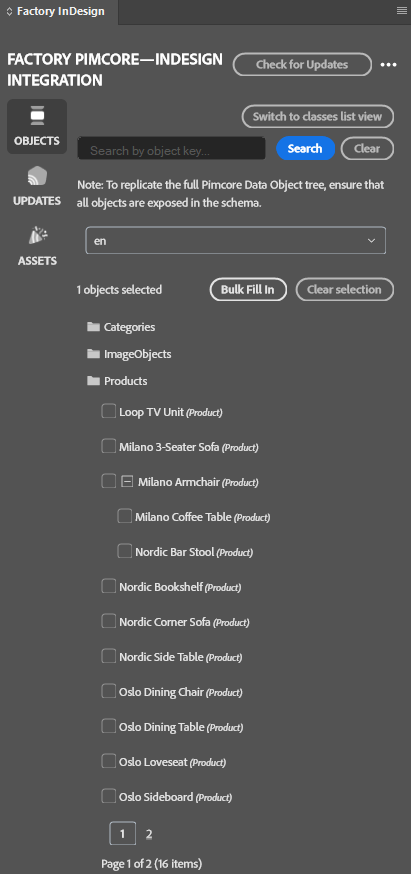
To browse by Pimcore object folders, click Switch to tree view. Expand the folders you need; click Switch to classes list view to return to the class tabs. Only exposed objects appear in the plugin, so a restricted configuration may not reproduce the entire Pimcore tree.
To find an object, type a full key or any part of an object key into Search by object key…, then click Search. The match can occur anywhere in the key, not just at the beginning. Search runs when you click the button, not while you type, and is case-sensitive: searching Blue can find CAT-Blue-42, but blue will not match that key. Click Clear to remove the search and return to the list.
The language selector shows the languages configured in Pimcore. If Pimcore has five languages, all five appear. Select the language you want to use. Localised attributes show their value for the selected language; non-localised attributes show their non-localised value.
Assets
Before browsing or inserting assets: The Pimcore administrator must create and save the FactoryInDesign image thumbnail with Scale by Width: 50 and Scale by Height: 50. See Get started > Create the image thumbnail for the InDesign plugin. Asset read access and asset-folder Workspaces must also be configured under Get started > Datahub configuration; without these prerequisites, asset previews or insertion in the plugin may not work.
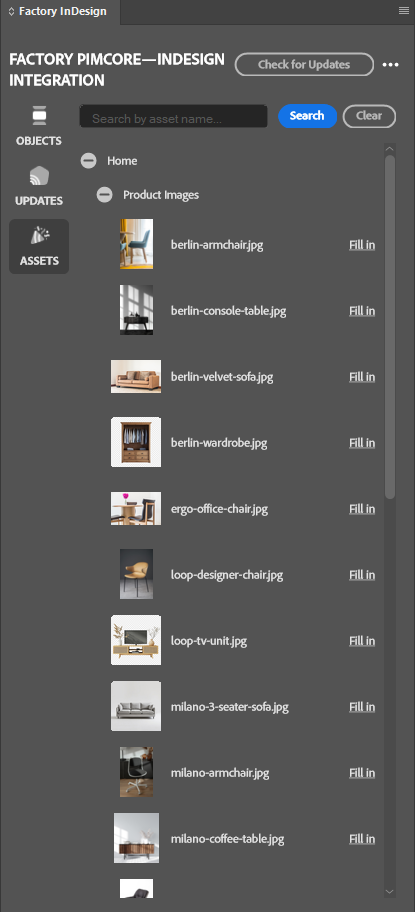
Open ASSETS to browse the DAM folders available through your connection. Expand a folder to see its files. To find an asset by name, enter its filename in Search by asset name… and click Search; use Clear to reset the results.
You can place raster images (PNG, JPG, etc.), vector graphics (SVG), PDF, .ai (Adobe Illustrator), and .eps files from ASSETS. To put an asset into a rectangle in your document, select the rectangle in InDesign and click Fill in beside the asset’s thumbnail or list entry. Select a different rectangle before placing another asset. Folders are for navigation; select a file to place it.