Check for updates
Object updates
Your open InDesign document does not automatically change when someone edits Pimcore data. When you are ready to review changes:
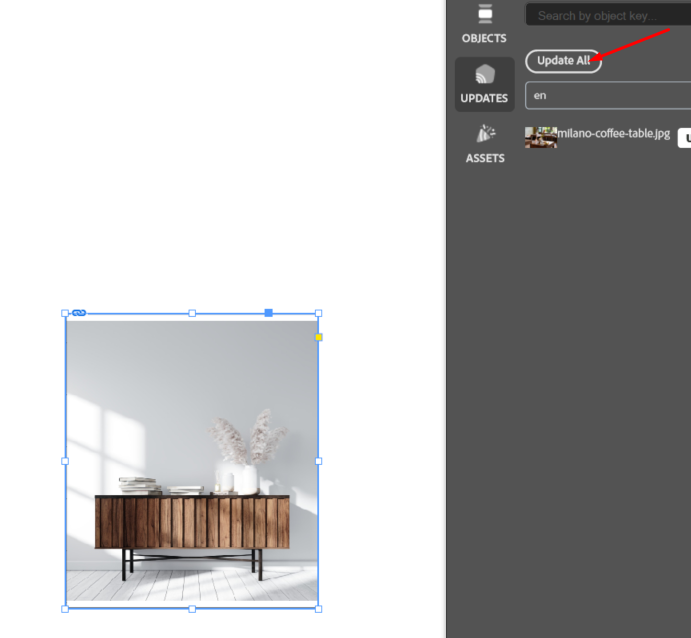
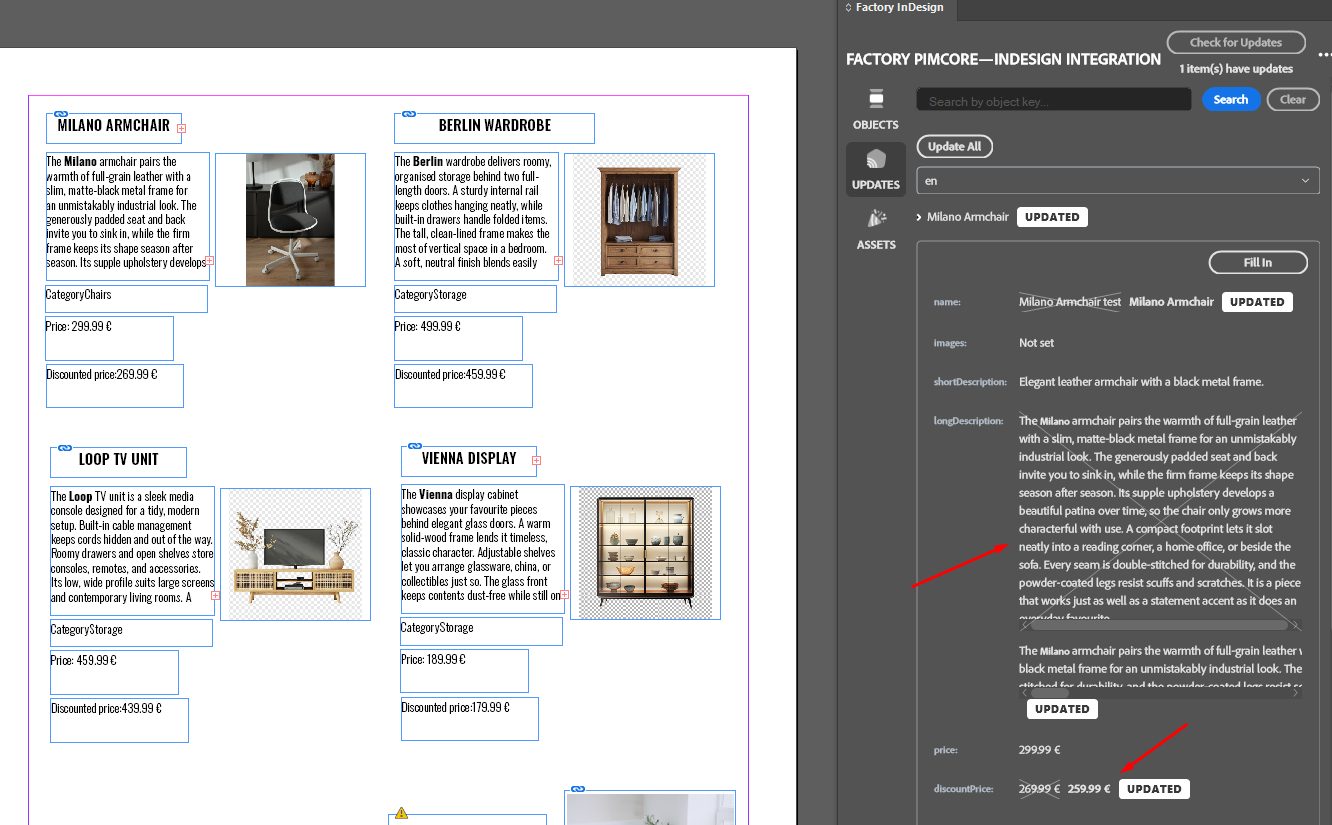
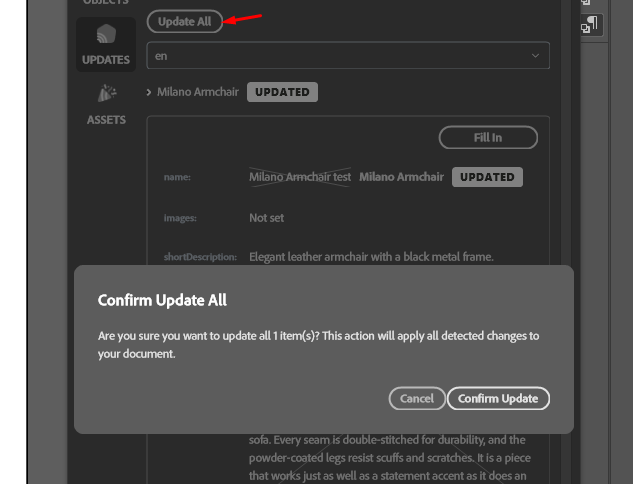
1. Save your InDesign document and click Check for Updates in the plugin.
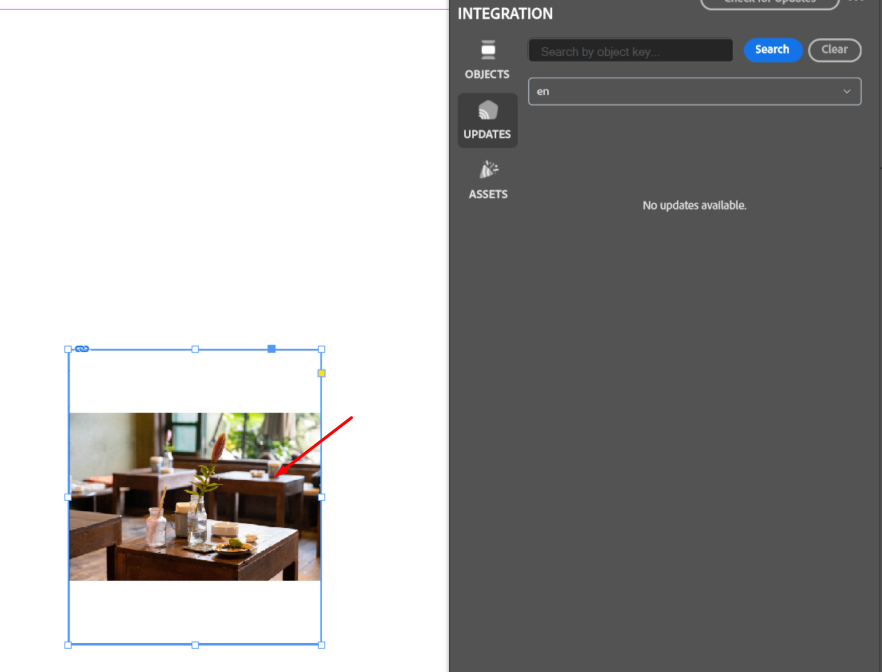
2. Open UPDATES and inspect the changed items. Where available, compare the previous and current values; a changed sequence is flagged Order changed.
3. Apply an individual change with its Fill in control, or choose Update All and confirm when you intend to apply all available changes.
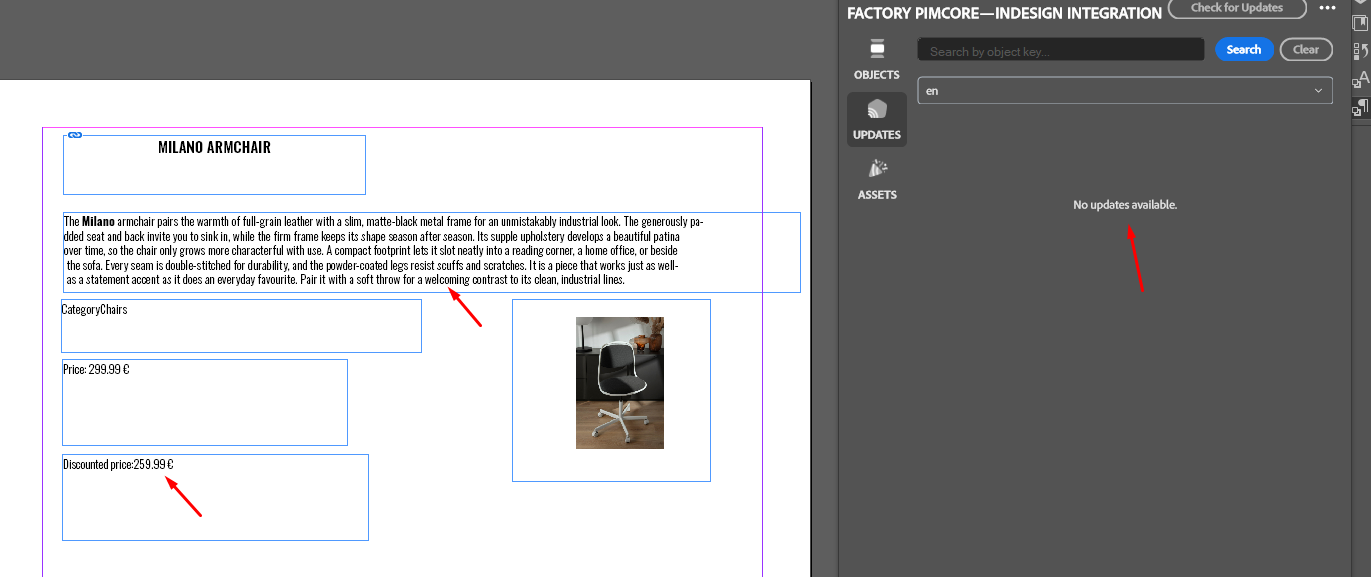
4. Review the updated text, overset indicators, images, and InDesign links. Save the document again.
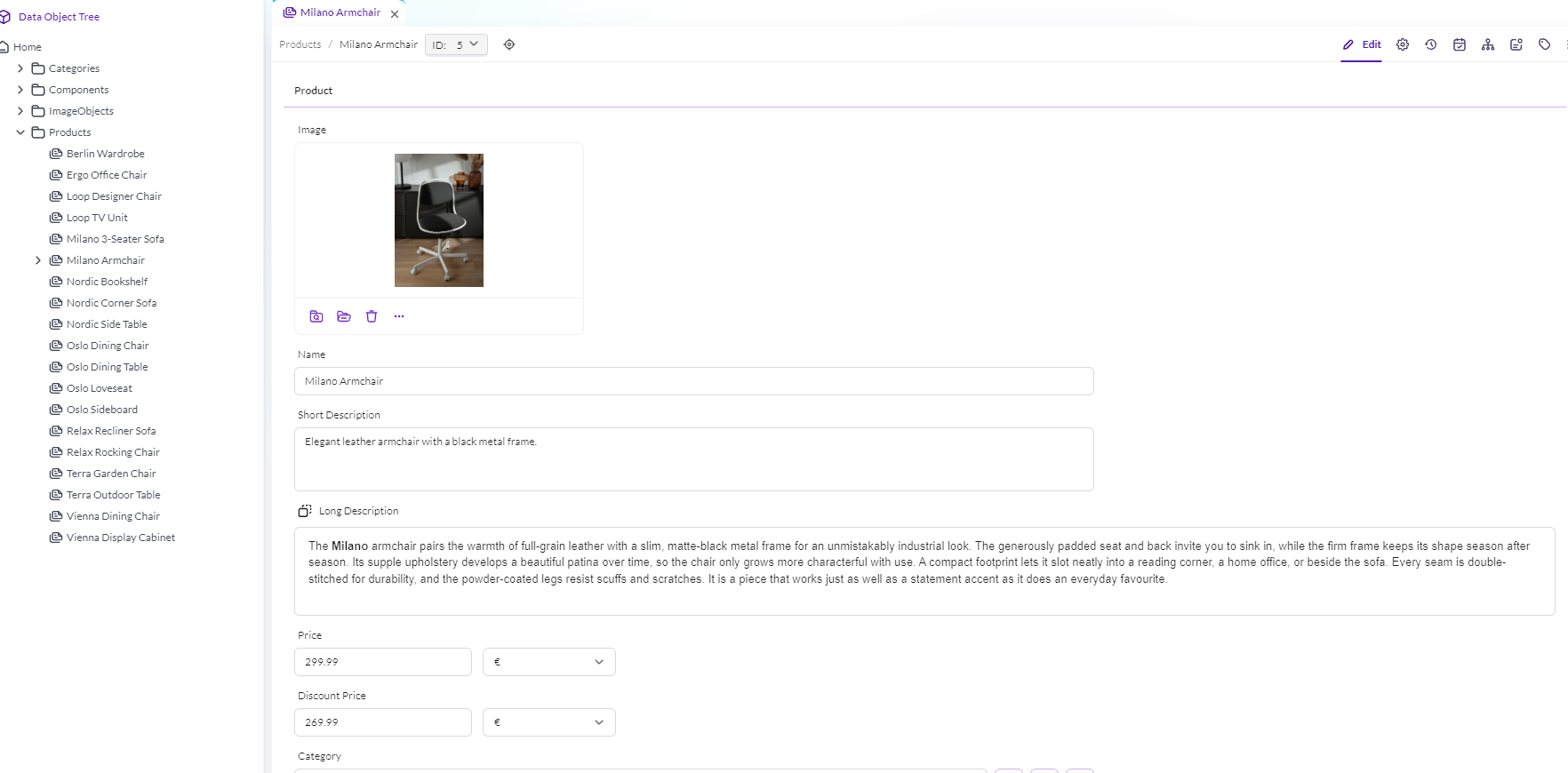
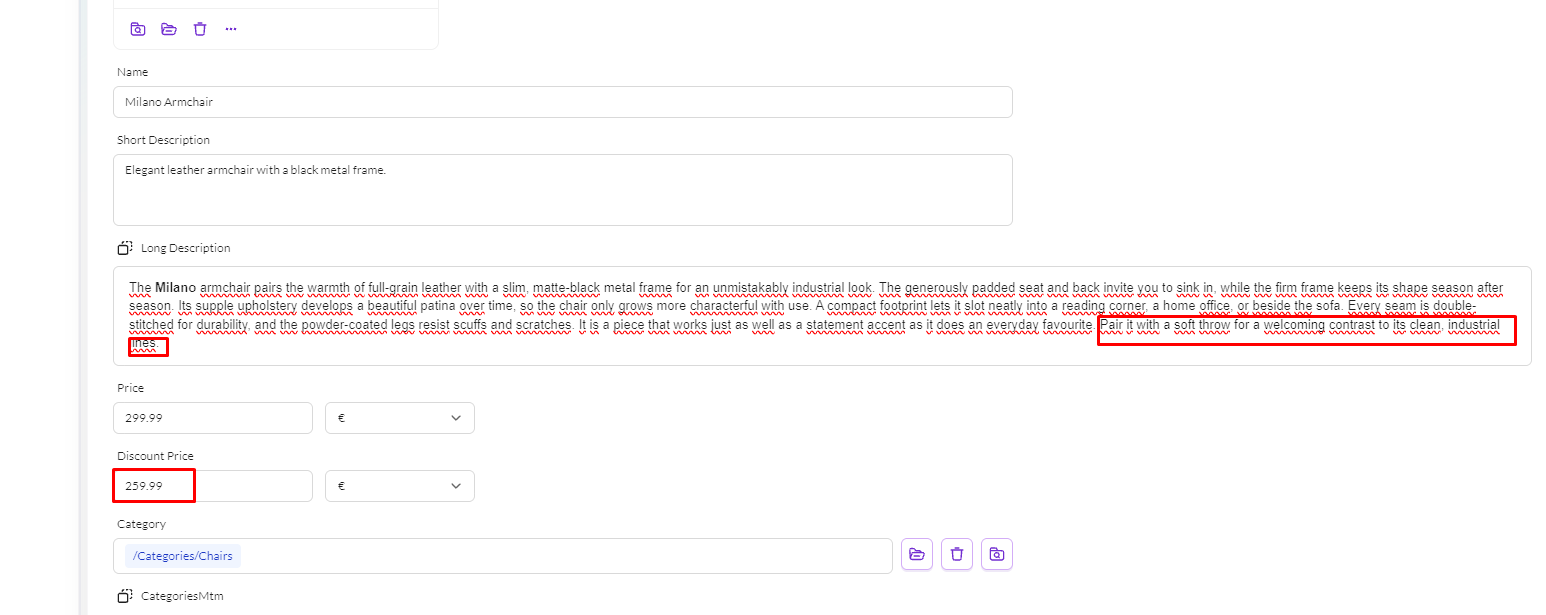
For example, if a placed Product name changes from Milano Armchair to Milano Armchair Black, an update replaces the old placed value. Changes to a related object’s values, a Product’s related object, the membership or order of repeated items, and gallery images can also be reviewed and applied. Look for Order changed when related items or gallery images have been reordered. Repeated values are rebuilt in current Pimcore order; updated existing gallery images retain their frame positions and formatting. If the panel displays No updates available., there are no changes listed for you to apply.
Asset updates
Images placed directly from ASSETS can be updated even when they are not linked to a Pimcore object.
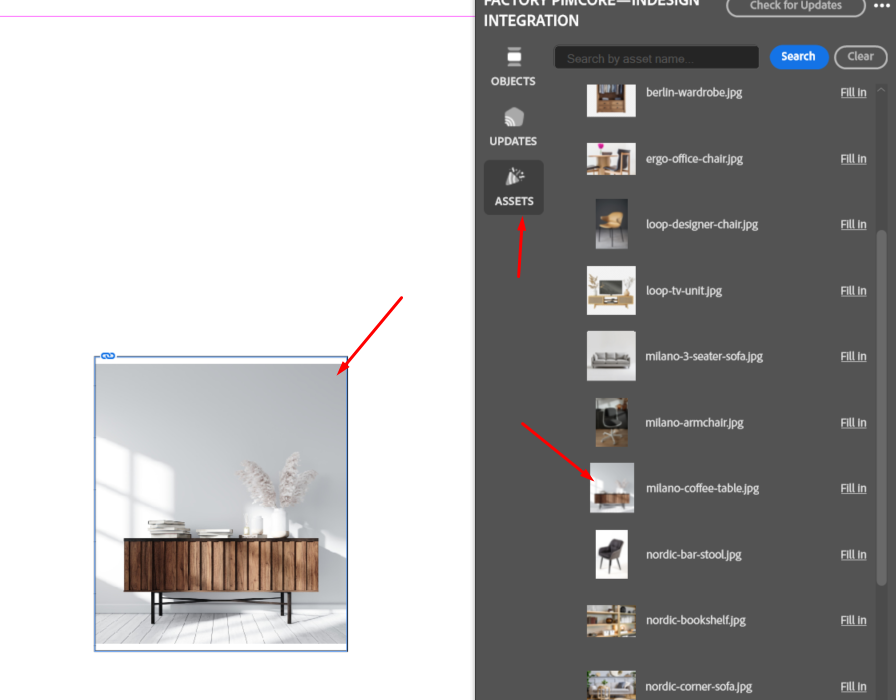
If someone uses Upload new version on the same DAM asset in Pimcore, Check for Updates marks the image and its parent folders with UPDATE in ASSETS.
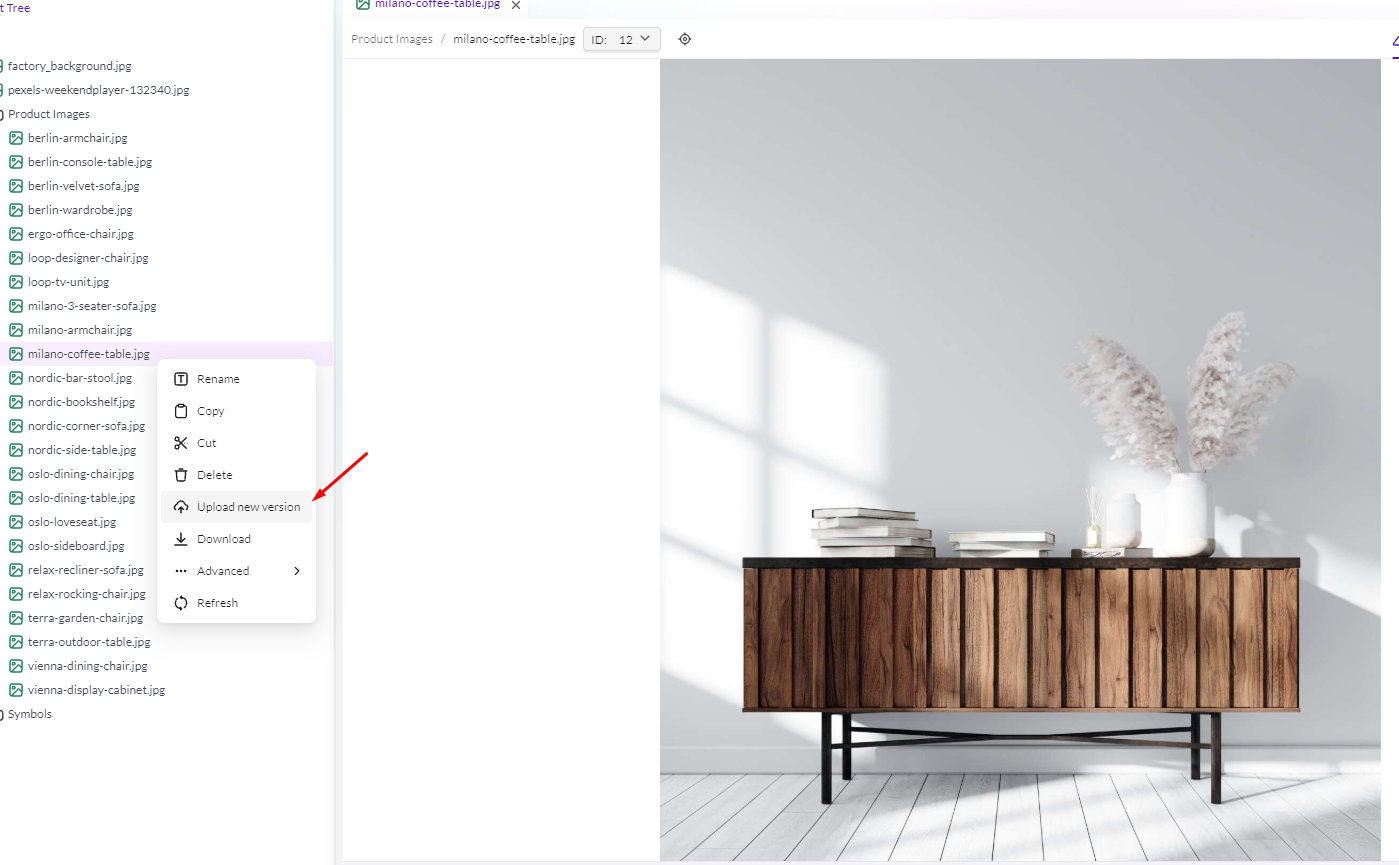
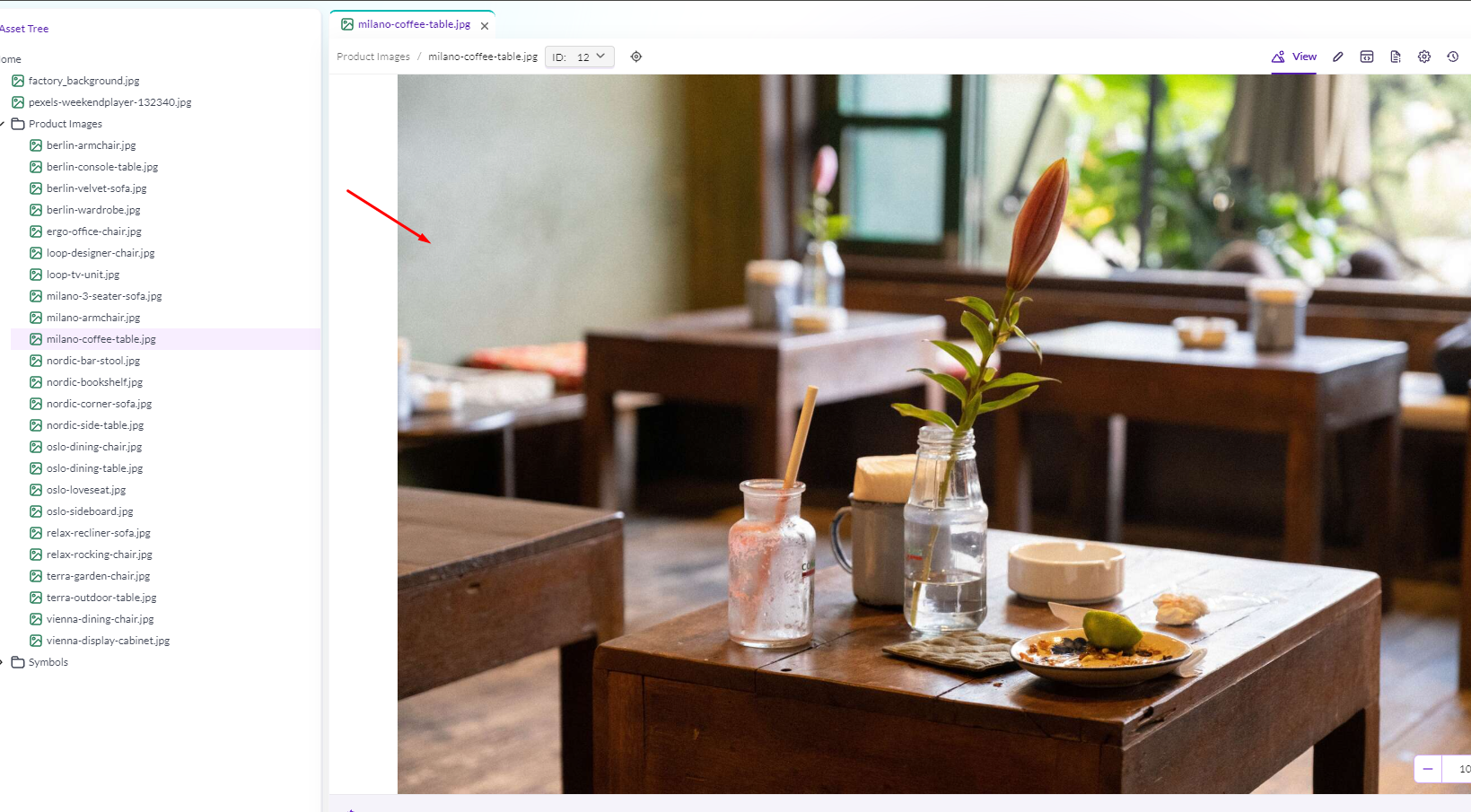
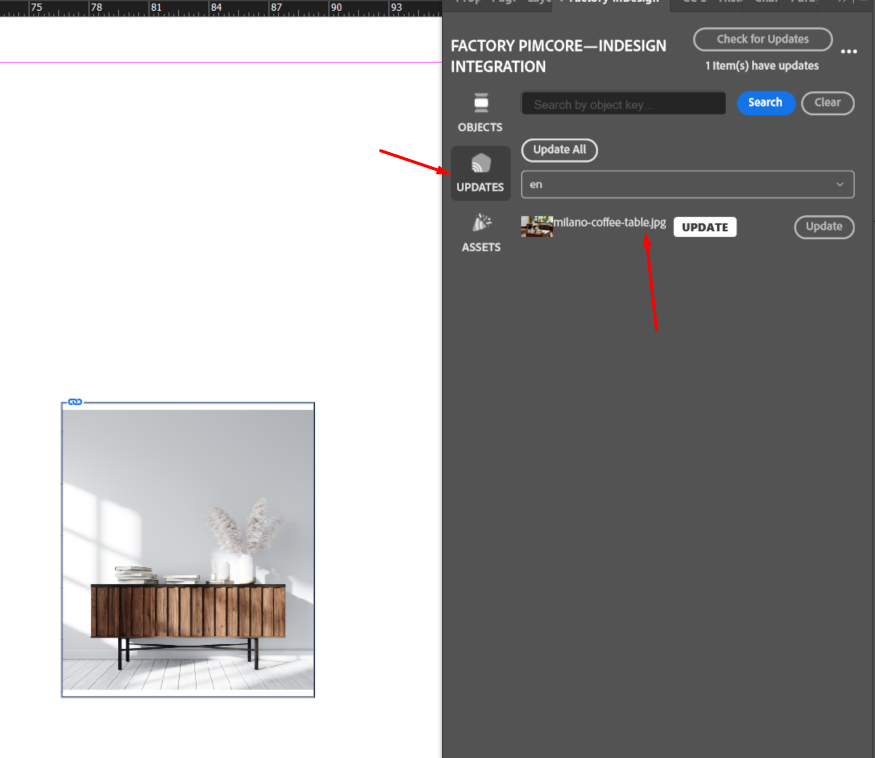
The image appears once in UPDATES, even if you placed it several times. Apply its individual update or Update All to replace every placed instance. Renaming or moving an asset alone does not trigger an image update.