Open the installed plugin
Use the Factory InDesign plugin to place Pimcore object data and assets into Adobe InDesign documents, then check for changes when the source data is updated. Pimcore supplies the content; you control the document’s layout and styling in InDesign. The plugin reads Pimcore data but does not edit it. The examples in this manual use sample products and field names; your available content depends on your GraphQL configuration.
Before you begin, have the developer install the plugin as described under Get started > Installation. Obtain a Product Key, a GraphQL Endpoint URL and the API Key for that endpoint from the person managing your Pimcore connection. Have an InDesign document (.indd) ready. Keep your API Key private.
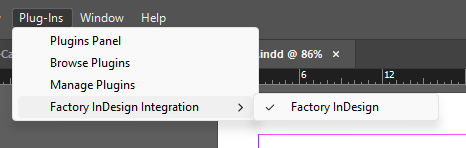
1. Open Adobe InDesign. To display the installed plugin panel, go to Plug-Ins > Factory InDesign Integration > Factory InDesign.
Where to find the plugin version: In Adobe Creative Cloud, go to Stock & Marketplace > Plugins > Manage plugins. The installed plugin and its version appear there.
There is no separate Product Key activation step: you enter the key when connecting. The licence covers your organisation without a per-user limit.