Place images and other files
Save the InDesign document before inserting assets. A newly created document must be saved as an .indd file at least once before you place an asset through the plugin. If asset insertion does not work in a new document, save the document and try again.
Choose the placement method based on where the content lives and what kind of InDesign frame you have selected:
| Source and target | What to do |
|---|---|
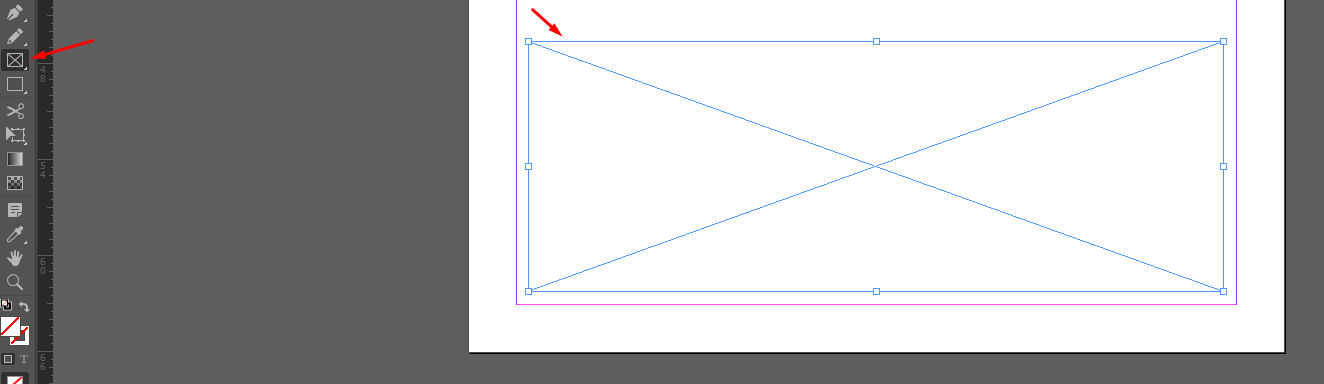
| File in ASSETS → selected rectangle | Select the rectangle, then click Fill in beside the file’s thumbnail/list entry. Supported files include raster images (PNG, JPG, etc.), vector graphics (SVG), PDF, .ai, and .eps. |
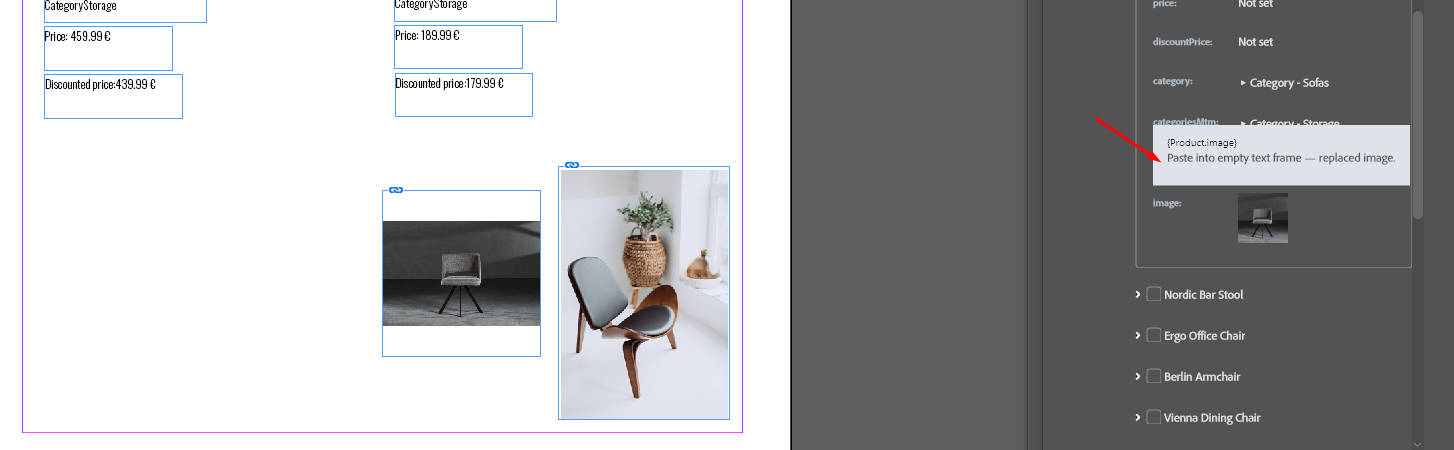
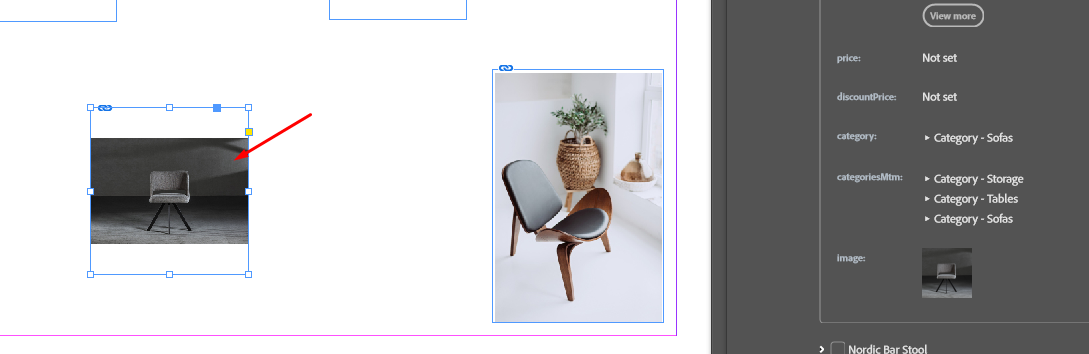
| Image attribute in OBJECTS → selected rectangle | Select the rectangle, then click the image thumbnail itself under the object attribute. There is no attribute-level Fill in button for this action. |
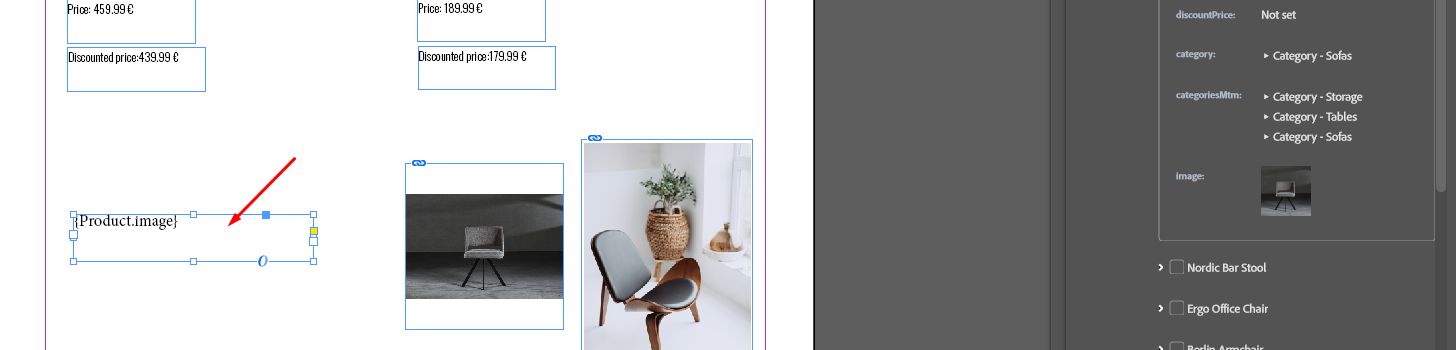
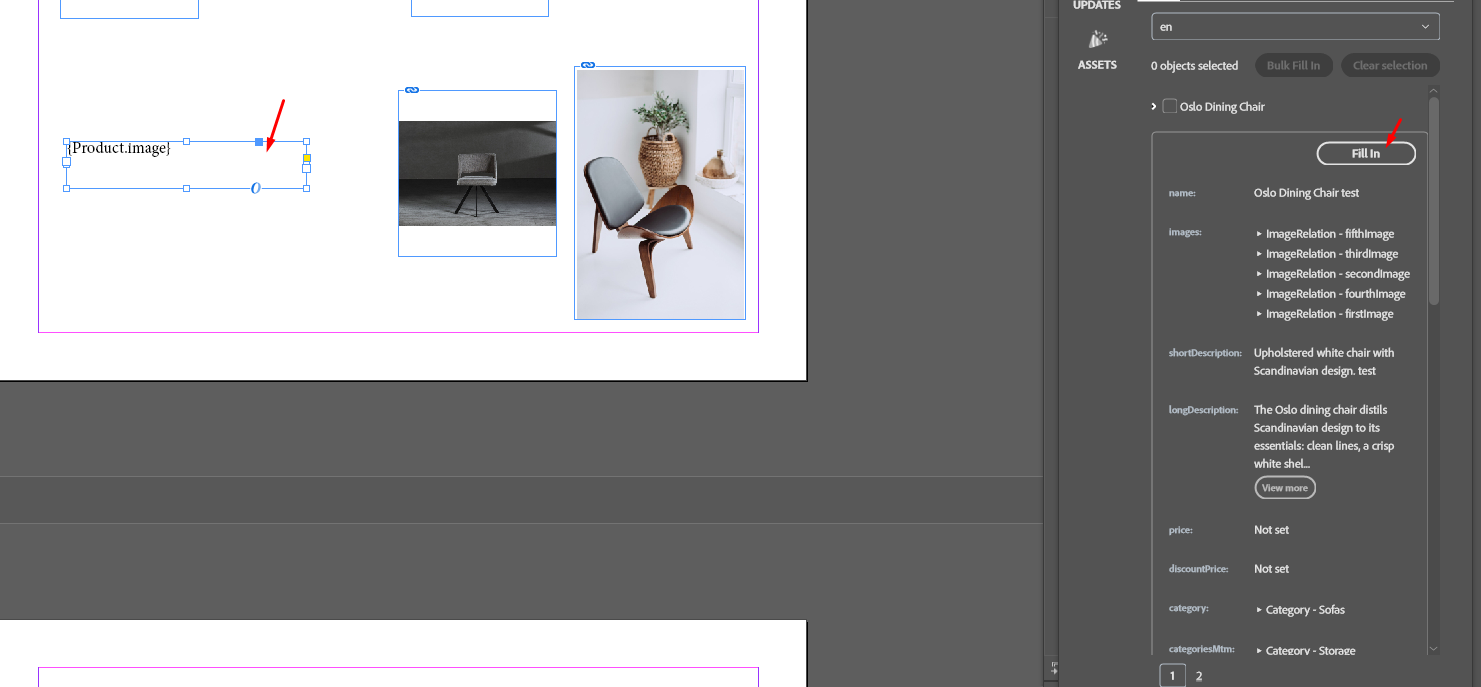
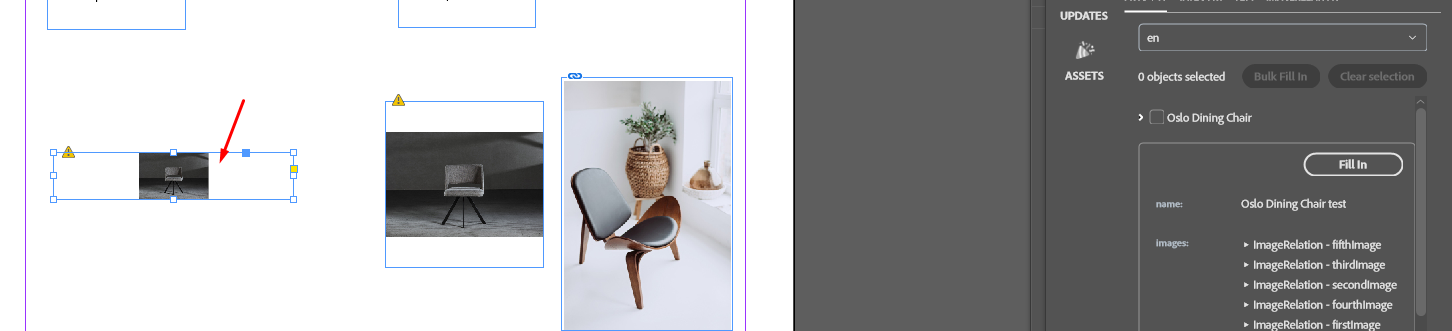
| Image attribute in OBJECTS → text frame | Copy its placeholder, for example {Product.image}, into the text frame. Run an applicable Fill in action, including object-level Fill in or Bulk Fill In. |
Object-level Fill in and Bulk Fill In do not fill selected rectangle shapes. To place another image or file in a rectangle, select that rectangle and repeat the appropriate click action. Check the resulting placement and InDesign links before sending the document to another person.
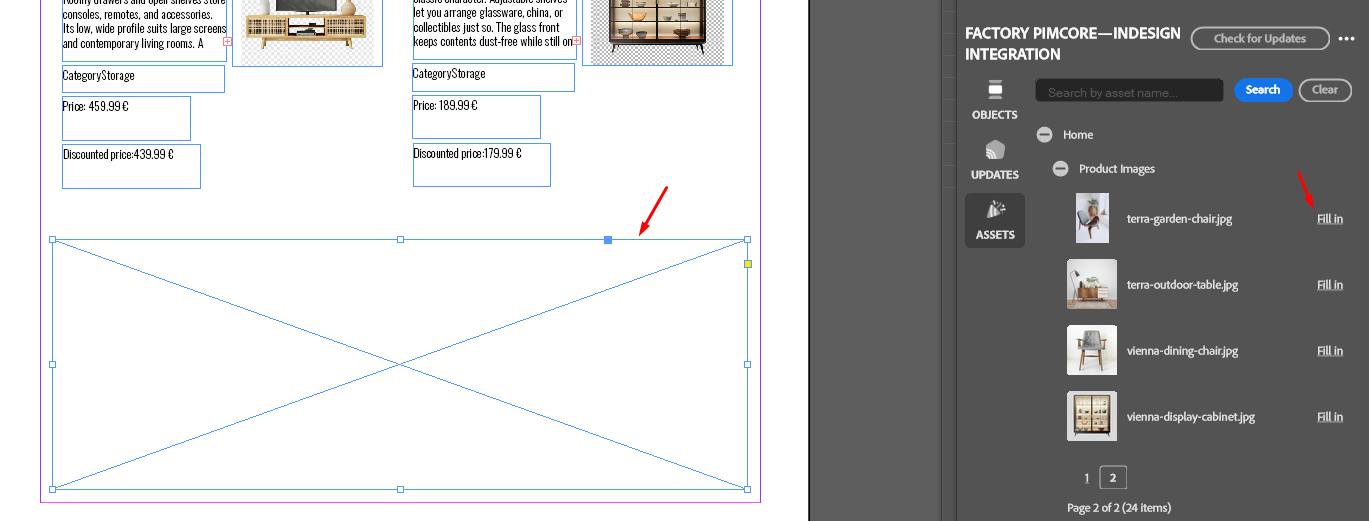
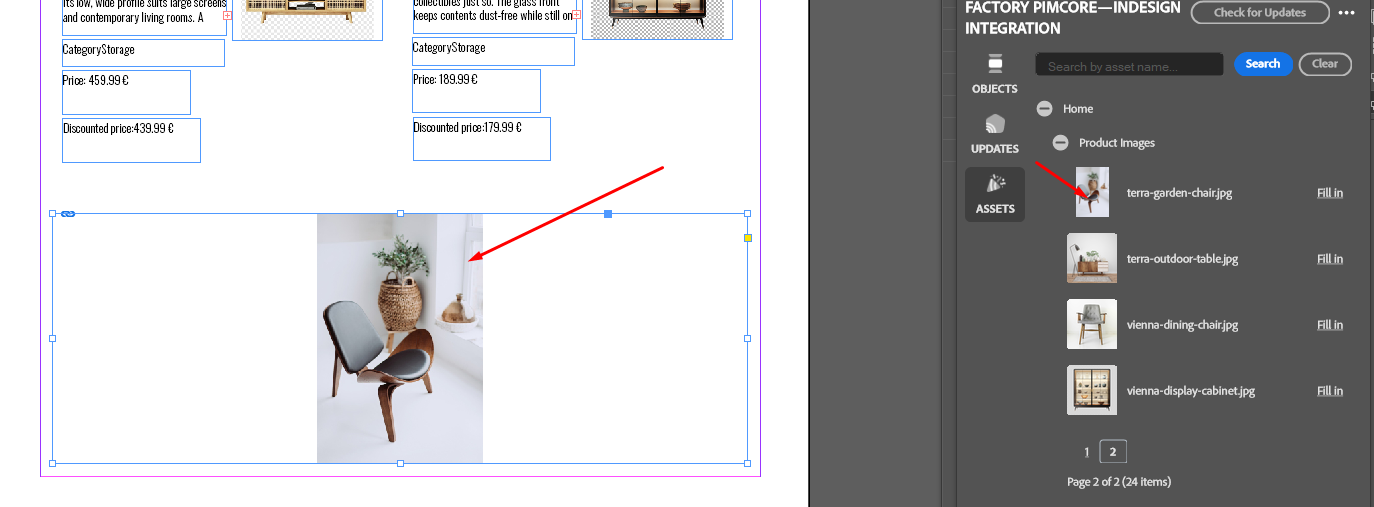
Fill in from object in rectangle placeholder
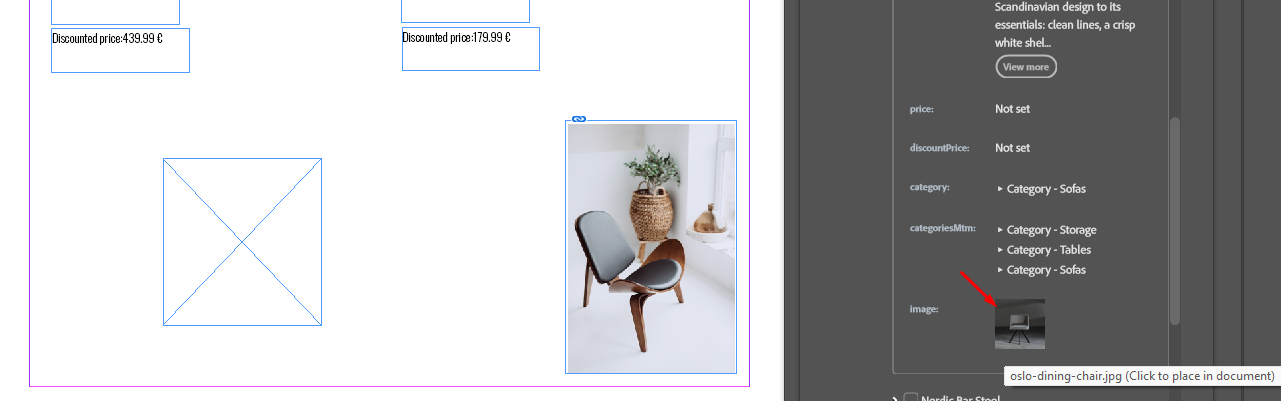
Fill in from textframe placeholder